Monday, March 19, 2012

Efficient android programming Tips


General Tips:
  1. Add Two Numbers: Your first non-tutorial application should be to take two numbers and add them together. It sounds too simple. You will spend some hours getting the layouts, the callbacks, and onPause/onResume to work correctly. Do it.
  2. It is Java: You work in Java for most of your Android programming. Don't spend time praising it. Don't spend time complaining about it. Just work with it.
  3. Love RelativeLayout: Most of the tutorials use LinearLayout, but you will find that RelativeLayout is truly useful. Many layouts, like the GridLayout aren't used much at all. Play around with RelativeLayout. See an example from this question.
  4. Use fill_parent with a top level RelativeLayout: A surprisingly common and hard to find problem is putting a wrap_content in a top level RelativeLayout and then wondering why unrelated fields far down in the hierarchy are rendering strangely.
  5. Use empty layout items: You will often use empty items in your layouts just for positioning other layouts. For example, you might use an empty TextField, of width=0 and height=0 and centerInParent='True' just to anchor things relative to the middle of the screen. Also, you might have an empty TextField or LinearLayout so that you can give a layout_weight=1 to it and have it take up more screen space.
  6. Set a layout background color: If you are having trouble figuring out your layout, try setting the background colors on some objects. It can highlight your mistakes faster than other tools, and shows some surprises that the IDE red box doesn't always help.
  7. Download Apps-For-Android: This is a big chunk of useful source code for a half dozen applications. It can supplement the sample applications nicely and show different coding style solutions. Grab it using svn co http://apps-for-android.googlecode.com/svn/trunk/ apps-for-android-read-only
  8. Download the source: You need the Android source to solve some problems or, more likely, get past holes in the documentation. Your copy does not need to be perfect or kept up to date. You can learn to use the repo command, or just visit http://android.git.kernel.org/ for a snapshot.
  9. Learn to search your source: The fastest solution to many problems is to find where a particular parameter is used in some other source. Put a copy or link to the sample applications, apps-for-android applications, and any other source you have under one directory tree. Use "grep -ir funky_parameter sample_code/" or your favorite searching routine to quickly find some code that uses that parameter.
  10. Use Eclipse: Even you have a favorite editor or IDE you have used for years, use Eclipse for Android development. It is good enough as an IDE and is really part of the development tools suite. Any time you spend trying to jury-rig your IDE to work is time you didn't code.
  11. Learn Eclipse: Learn a few new tricks with Eclipse every day. Some of my favorite commands were found reading this list and this question.
  12. Get help when starting out: The quantity of readable material can be overwhelming. Setting up the environment can be tricky. Going to an Android Meet-up or users group can help get over the initial hump.
  13. Code every day: Android code will be frustrating. Don't allow yourself to stop because you get stuck. Play around with the tools, step through a sample application, read one of the articles, or read a blog to ease the frustration. Then write some more code.
  14. Lurk on IRC: Connect your favorite IRC reader to irc.freenode.net's #android-dev channel. Leave it up in the background. Only ask questions after you have spent ten minutes trying to figure it out on your own.
  15. Use two monitors: Working on your laptop in the coffee shop will slow you down. You need to spread out windows. At very least, you will want a full screen Eclipse session, the emulator, and a browser with the tutorial to all be easily visible. Three screens may work even better.
  16. Reformat XML files: The layout editor makes a hash of the XML files. Use the 'source/format' command to put them in a reasonable form. You will want to check the "Eclipse/Windows/Preferences/XML/XML Files/Editor/Formatting/Split XML attributes each on a new line" check box. Then use shift-ctrl-F to format it.
  17. Edit XML files with the text editor: After the first couple of layout screens, stop using the slow moving 'properties' gui to change properties. Drop the items using the gui. Use the up/down arrows on the far right outline to get the hierarchy of views and layouts correct, then edit the XML file directly and use the ctrl-space shortcut to bring up possible completions and explanations of the properties.
  18. Plan on Piracy in the MarketPlace: Google has not made the MarketPlace a Happy Place. Apps are copied and reposted with changed names to funnel money around. Lots of scammers are trying to game the system in many ways. Don't plan on making a living solely from AppStore revenues nor plan on Google being responsive.
  19. Use LogCat: It can be difficult in Android to figure out 'what went wrong'. Run the application in the debugger and look at the logcat window. I found it worthwhile to add a new perspective with just a maximized logcat window. If you like to have a colored LogCat output in a separate window try this tool: Colored LogCat
  20. Explore the tools directory: There a lot helpful tools in the sdk's tools directory, such as hierarchyviewer and layoutopt. Each is helpful and there is no shortcut to learning about each tool one at a time.
Important Tips:
  1. Don't forget to free resources after use.
    Lot of resources like Cursors are overlooked. Free them too.
  2. Don't Use magic Numbers.
    values[0] is meaningless. The framework provides very useful accessors like
    values[SensorManager.DATA_X]
  3. "Make use of onPause()/onResume to save or close what does not need to be opened the whole time."
protected void onResume() {
mSensorManager.registerListener(...);
}
protected void onStop() {
  mSensorManager.unregisterListener(...);
  super.onStop();
}

4.       Make your Android UI Fast and Efficient from the Google I/O has a lot of useful UI Performance tips.
  • Optimize Judiciously
  • Avoid Creating Objects
  • Performance Myths
  • Prefer Static Over Virtual
  • Avoid Internal Getters/Setters
  • Use Static Final For Constants
  • Use Enhanced For Loop Syntax
  • Avoid Enums Where You Only Need Ints
  • Use Package Scope with Inner Classes
  • Use Floating-Point Judiciously
  • Know And Use The Libraries
  • Use Native Methods Judiciously
Best Practices for User Interfaces:
·         1 Read the UI guidelines
·         2 Understand and design for touch mode
·         3 But, support multiple interaction modes
·         4 Use notifications and the window shade
·         5 Support interaction between applications
·         6 Keep your UI fast and responsive
·         7 Use widgets and live folders
·         8 Handle screen orientation changes
·         9 Use images wisely
·         10 Use layouts that adapt to multiple devices
·         And from SO:


Thursday, March 1, 2012

Using NDK to Call C code from Android Apps Part-2

Updated for NDK 1.6

While Android SDK is great for application development, every once in a while you may need access to native code. This code is usually done in C. While you were able to access native code via Java Native Interface (JNI) all along, the process was rather hard. You would've typically had to compile everything on your host computer for the target architecture, requiring you to have the entire toolchain on your development machine.

Android NDK (Native Development Kit) simplifies working with native code. It includes the entire toolchain needed to build for your target platform (ARM). It is designed to help you create that shared library.


Note that native code accessible via JNI still runs inside the Dalvik VM, and as such is subject to the same life-cycle rules that any Android application lives by. The advantage of writing parts of your app code in native language is presumably speed in certain cases.

Note: I'm using <NDKHOME> to refer to the root directory in which you installed your NDK. For me that's /Users/marko/WorkArea/android-ndk-1.6_r1. I'm assuming all other directories and files are relative to your Eclipse project root, in my case /Users/marko/Workspace/Android/NDKDemo.

Overview


We are roughly going to do this:

1. Create the Java class representing the native code
2. Create the native code header file
3. Implement the native code by writing your C code
4. Compile everything and build you Shared Library
5. Use your native code inside Android activity


Create Native Library

This is just a Java file that lives in standard src directory in your Eclipse project. It serves as the glue to the native code that we'll write later.

/src/com.marakana/NativeLib.java
Code:

package com.marakana;

public class NativeLib {

  static {
    System.loadLibrary("ndk_demo");
  }
  
  /** 
   * Adds two integers, returning their sum
   */
  public native int add( int v1, int v2 );
  
  /**
   * Returns Hello World string
   */
  public native String hello();
}


Create C Header File
In your project bin directory (in my case, <EclipseWorkspace>/NDKDemo/bin), run javah tool to create the JNI header file.

Next, create a jni directory in your project directory (in my case, <EclipseWorkspace>/NDKDemo/jni).

Next, copy the JNI header from <EclipseWorkspace>/NDKDemo/bin to <EclipseWorkspace>/NDKDemo/jni

Here's my command line:

Code:

NDKDemo/bin$ javah -jni com.marakana.NativeLib
NDKDemo/bin$ mv com_marakana_NativeLib.h ../jni/


Write the C Code

In your <EclipseWorkspace>/NDKDemo/jni/ folder, create ndk_demo.c file. This is where we'll implement the native code. To start, copy the function signatures from the header file, and provide the implementation for those functions. In this example, the header file looks like this:

<EclipseWorkspace>/NDKDemo/jni/com_marakana_NativeLib.h
Code:

/* DO NOT EDIT THIS FILE - it is machine generated */
#include <jni.h>
/* Header for class com_marakana_NativeLib */

#ifndef _Included_com_marakana_NativeLib
#define _Included_com_marakana_NativeLib
#ifdef __cplusplus
extern "C" {
#endif
/*
 * Class:     com_marakana_NativeLib
 * Method:    add
 * Signature: (II)I
 */
JNIEXPORT jint JNICALL Java_com_marakana_NativeLib_add
  (JNIEnv *, jobject, jint, jint);

/*
 * Class:     com_marakana_NativeLib
 * Method:    hello
 * Signature: ()Ljava/lang/String;
 */
JNIEXPORT jstring JNICALL Java_com_marakana_NativeLib_hello
  (JNIEnv *, jobject);

#ifdef __cplusplus
}
#endif
#endif


And the corresponding implementation looks like this:

<EclipseWorkspace>/NDKDemo/jni/ndk_demo.c
Code:

#include "com_marakana_NativeLib.h"

JNIEXPORT jstring JNICALL Java_com_marakana_NativeLib_hello
  (JNIEnv * env, jobject obj) {
  return (*env)->NewStringUTF(env, "Hello World!");
}

JNIEXPORT jint JNICALL Java_com_marakana_NativeLib_add
  (JNIEnv * env, jobject obj, jint value1, jint value2) {
  return (value1 + value2);
}


Build The Library

To build the library, first we need to create a makefile for how to compile the C code:

<EclipseWorkspace>/NDKDemo/jni/Android.mk
Code:

LOCAL_PATH := $(call my-dir)

include $(CLEAR_VARS)

LOCAL_MODULE    := ndk_demo
LOCAL_SRC_FILES := ndk_demo.c

include $(BUILD_SHARED_LIBRARY)


Next, we need to tell NDK how to build the shared library and put it in the correct place inside the Eclipse project. To do this, create a folder <NDKHOME>/apps/ndk_demo/ and inside this folder create the Application file:

<NDKHOME>/apps/ndk_demo/Application
Code:

APP_PROJECT_PATH := $(call my-dir)/project
APP_MODULES      := ndk_demo


Next, create a symbolic link <NDKHOME>/apps/ndk_demo/project to your Eclipse project:

ln -s ~/Workspace/Android/NDKDemo <NDKHOME>/apps/ndk_demo/project

If you are on Windows, or another OS that doesn't support symbolic links, you may have to copy entire Eclipse project into <NDKHOME>/apps/ndk_demo/project directory, then copy back to Eclipse. I'm running all this on Mac OS X 10.6 and I assume Linux-type shell.

You can now to to your <NDKHOME> and run make APP=ndk_demo

The output should look lie this:

Code:

android-ndk-1.5_r1$ make APP=ndk_demo
Android NDK: Building for application 'ndk_demo'    
Compile thumb  : ndk_demo <= sources/ndk_demo/ndk_demo.c
SharedLibrary  : libndk_demo.so
Install        : libndk_demo.so => apps/ndk_demo/project/libs/armeabi


You can now refresh your Eclipse project and you should /lib/ directory containing your libndk_demo.so file.

Calling Native Code from Java

So now that we have the native C library implemented, compiled, and placed in the right place, let's see how we can call it from our Activity. It's actually rather simple - you just have to instantiate the instance of your NativeLib class and from there on, it's just a regular Java object.

/src/com.marakana/NDKDemo.java
Code:

package com.marakana;

import android.app.Activity;
import android.os.Bundle;
import android.view.View;
import android.view.View.OnClickListener;
import android.widget.Button;
import android.widget.EditText;
import android.widget.TextView;

public class NDKDemo extends Activity {
  NativeLib nativeLib;

  /** Called when the activity is first created. */
  @Override
  public void onCreate(Bundle savedInstanceState) {
    super.onCreate(savedInstanceState);
    setContentView(R.layout.main);

    nativeLib = new NativeLib();
    String helloText = nativeLib.hello();

    // Update the UI
    TextView outText = (TextView) findViewById(R.id.textOut);
    outText.setText(helloText);

    // Setup the UI
    Button buttonCalc = (Button) findViewById(R.id.buttonCalc);

    buttonCalc.setOnClickListener(new OnClickListener() {
      TextView result = (TextView) findViewById(R.id.result);
      EditText value1 = (EditText) findViewById(R.id.value1);
      EditText value2 = (EditText) findViewById(R.id.value2);

      public void onClick(View v) {
        int v1, v2, res = -1;
        v1 = Integer.parseInt(value1.getText().toString());
        v2 = Integer.parseInt(value2.getText().toString());

        res = nativeLib.add(v1, v2);
        result.setText(new Integer(res).toString());
      }
    });
  }
}


The UI for this example is not that significant, but I'm going to include it here for the sake of completeness.

/res/layout/main.xml
Code:

<?xml version="1.0" encoding="utf-8"?>
<LinearLayout xmlns:android="http://schemas.android.com/apk/res/android"
  android:orientation="vertical" android:layout_width="fill_parent"
  android:layout_height="fill_parent">
  <TextView android:layout_width="fill_parent"
    android:layout_height="wrap_content" android:text="NDK Demo"
    android:textSize="22sp" />
  <TextView android:layout_width="wrap_content"
    android:layout_height="wrap_content" android:id="@+id/textOut"
    android:text="output"></TextView>
  <EditText android:layout_width="wrap_content"
    android:layout_height="wrap_content" android:id="@+id/value1"
    android:hint="Value 1"></EditText>
  <TextView android:id="@+id/TextView01" android:layout_width="wrap_content"
    android:layout_height="wrap_content" android:text="+"
    android:textSize="36sp"></TextView>
  <EditText android:layout_width="wrap_content"
    android:layout_height="wrap_content" android:id="@+id/value2"
    android:hint="Value 2"></EditText>
  <Button android:layout_width="wrap_content"
    android:layout_height="wrap_content" android:id="@+id/buttonCalc"
    android:text="="></Button>
  <TextView android:layout_width="wrap_content"
    android:layout_height="wrap_content" android:text="result"
    android:textSize="36sp" android:id="@+id/result"></TextView>
</LinearLayout>


Output


Source Code
http://marakana.com/static/tutorials/NDKDemo.zip
http://marakana.com/static/tutorials/NDKHOME.zip


Using NDK to Call C code from Android Apps Part-1

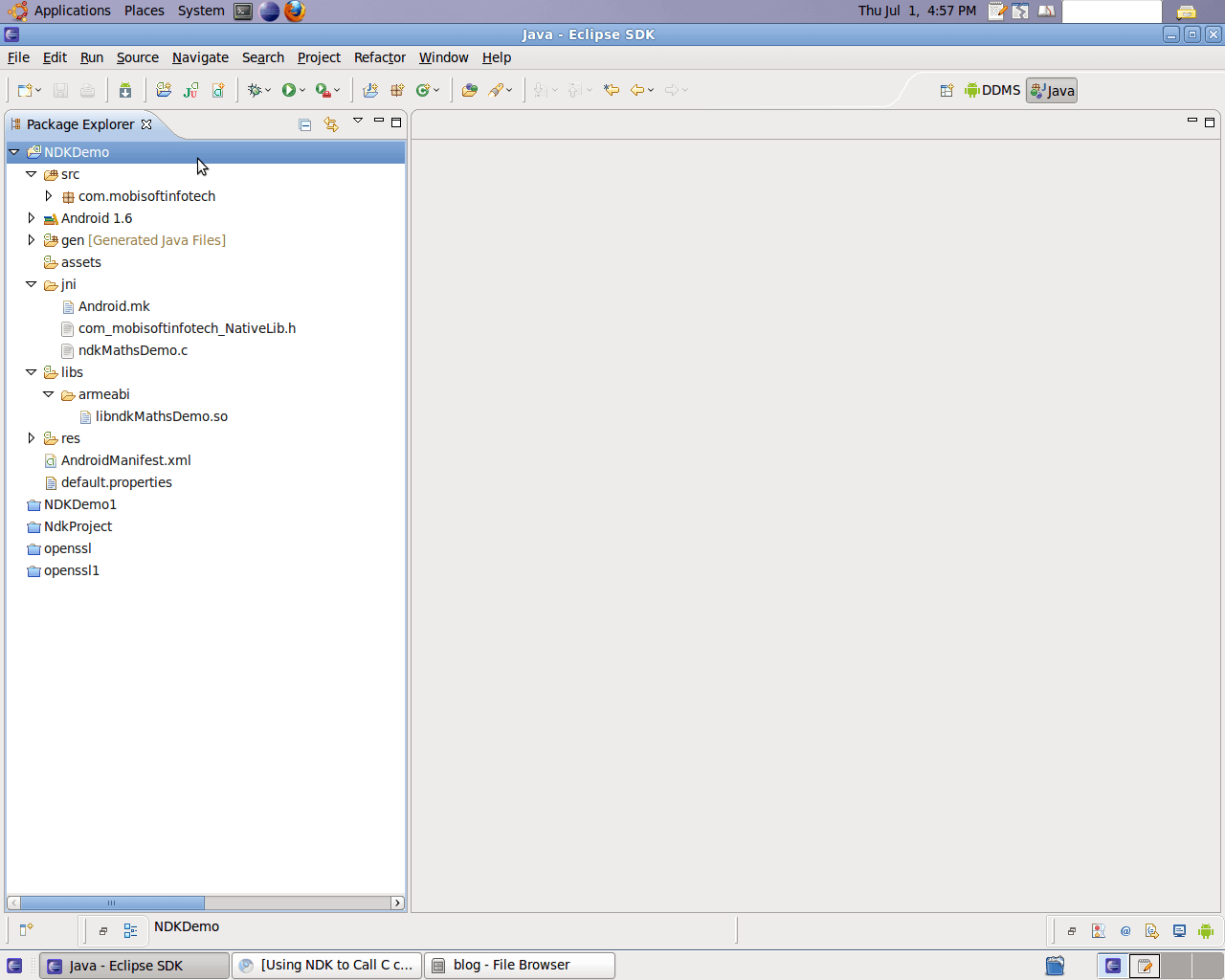
The Android NDK is a set of tools that allows Android application developers to embed native machine code compiled from C and/or C++ source files into their application packages.
While you were able to access native code via Java Native Interface (JNI) all along, You would’ve typically had to compile everything on your host computer for the target architecture, requiring you to have the entire toolchain on your development machine.
Android NDK (Native Development Kit) simplifies working with native code. It includes the entire toolchain needed to build for your target platform (ARM). It is designed to help you to create that shared library.
To do’s:
1. Create the Java class that represents the native code
2. Create header file for the native code.
3. Implement the native code by writing your C code
4. Compile everything and build you Shared Library
5. Use your native code inside Android activity
1. Create Native Library
Create a Native Library in src directorary in your Eclipse project.
/src/com.mobisoftinfotech/NativeLib.java
2. Create C Header File
In your project bin directory (in my case, /<workspace>/NDKDemo/bin), run javah tool to create the JNI header file.
NDKDemo/bin$ javah -jni com.mobisoftinfotech.NativeLib
Next, create a jni directory in your project directory ( in my case , <EclipseWorkspace>/NDKDemo/jni).
Next, copy the JNI header from <EclipseWorkspace>/NDKDemo/bin to <EclipseWorkspace>/NDKDemo/jni

3. Write the C Code
In your <EclipseWorkspace>/NDKDemo/jni/ folder, create ndkMathdemo.c file. This is where we’ll implement the native code. To start, copy the function signatures from the header file, and provide the implementation for those functions. In this example, the header file looks like this:
<EclipseWorkspace>/NDKDemo/jni/com_mobisoftinfotech_NativeLib.h
4. Build The Library
To build the library, first we need to create a makefile for how to compile the C code:
<EclipseWorkspace>/NDKDemo/jni/Android.mk
Next, we need to tell NDK how to build the shared library and put it in the correct place inside the Eclipse project. To do this, create a folder <NDKHOME>/apps/ndkMathsdemo/ and inside this folder create the Application file:
<NDKHOME>/apps/ndkMathsdemo/Application
You can now to to your <NDKHOME> and run make APP=ndkMathsdemo
The output should look like this on terminal:-
android-ndk-r4$ make APP=ndkMathsdemo
Android NDK: Building for application ‘ndkMathsdemo’
Compile thumb : ndkMathsdemo <= sources/ndkMathdemo/ndkMathdemo.c
SharedLibrary : libndkMathdemo.so
Install : libndkMathsdemo.so => apps/ndk_demo/project/libs/armeabi
You can now refresh your Eclipse project and you should /lib/ directory containing your libndkMathsdemo.sofile.
5. Calling Native Code from Java
So now that we have the native C library implemented, compiled, and placed in the right place, let’s see how we can call it from our Activity. It’s actually rather simple – you just have to instantiate the instance of your NativeLib class and from there on, it’s just a regular Java object.

Source Code: NDKDemo.tar


Monday, January 30, 2012

How to Get Your Eclipse-Integrated NDK On Here are the few steps


Here's how to set up a super speedy NDK development environment.
First of all, Eclipse can do way more than just Java. Java is what it's great at and what it was designed for but the architecture makes it so that it can handle any language effectively, including C. There is a component called CDT that allows for C/C++ Development in Eclipse. I'm getting ahead of myself, though. Here's what you need:


Android NDK (Native Development Kit)

Eclipse CDT (C Development Tooling)


If you're in Windows, you'll need Cygwin with the develop packages installed (Especially GCC and Make)


Here's what you need to do:
Install all 3 of those things. I like to install my NDK to c:\Android_NDK. I'll refer to that dir for the rest of this article.
Get acquainted with the NDK. You need to configure each project as an "app" in the c:\Android_NDK\apps dir. Just take a look at the examples. They work and are thorough.
How to test your NDK:
Run cygwin
cd /cygdrive/c/Android_NDK
make APP=hello-jni


It should roll up without errors. If you are lacking GCC or Make or any other develop packages, you will want to run your Cygwin setup again and check to make sure that all of the development packages are installed. If you have strange errors, I suggest reporting them in the NDK user's group.
Once your NDK is running, you can add an app for your project and set up the basic native framework for your project. Please refer to the examples for this part. You will need a specific build file that tells the compiler what sources to compile. JNI code is usually located in your Android project's jni folder. A file called Android.mk will need to be in there which instructs the compiler on what to compile.
After you get the basic configuration done, you will want to start writing some C. NDK uses Java's standard JNI bindings to work. All of the existing documentation on JNI should apply from this point forward. What to code is beyond the scope of this article.


Now for the good part :
If you've done any NDK work, you're probably used to using a text editor or vim or some other editor to edit your C/CPP then running make APP=myapp every time to build, then clicking refresh on your project in Eclipse and then hoping that the shared object library file that gets deployed is current. What a pain in the ass! There's a much, much better way.
Now that you have CDT installed, you can edit all of your C/C++ right from Eclipse. If you right click on a C/CPP source file, just pick Open With--C/C++ Editor and it will use the CDT editor. Much nicer! It won't be able to figure out what the code is doing because it's not compiling it, but it will make editing nice and all in one spot.
Building is a snap as well. Ever used builders in Eclipse? They are configurable triggers that will execute what you configure and refresh resources for you. Make sure you know if you're on the old r3 NDK (upgrade if you are - you should be on r4) and if so, I put different instructions in this list for the different versions. Here's how I set mine up:


Right click on your project, pick properties.
Select "builders" from the left-hand list.
Click "New..." on the right side.
Select "Program" as the configuration type.
I name mine "Native Builder"
Location - c:\cygwin\bin\bash.exe
Working Directory - c:\cygwin\bin
Arguments -
(for NDK r3):
--login -c "cd /cygdrive/c/Android_NDK && make APP=myapp"
(for NDK r4):
--login -c "cd /cygdrive/c/<myapp_project_dir> && /cygdrive/c/Android_NDK/ndk-build"
Make sure you have the two hyphens before login and the quotes after the hyphen-c
Now go to the refresh tab
Check "Refresh resources upon completion"
Select "Specific resources"
Click on the "Specify resources" button and select your project's lib directory.
Check "Recursively include sub-folders"
Now go to the build options tab
Check "Allocate Console"
Check "Launch in background"
Check "Run the builder After a Clean"
Check "Run the builder During manual builds"
Check "Run the builder During auto builds"
Check "Specify working set of relevant resources"
Click on "Specify Resources"
Select your project's JNI directory and all files within.
Now click OK on the bottom.
The assumption here is that cygwin is installed to c:\cygwin, NDK is in c:\Android_NDK and your project is called "myapp". Change where appropriate.
What did you just do?! You made it so that any time you edit any files within your JNI directory and you save them, Eclipse will run the NDK Builder for you via CygwinADT to compile a new APK for you and YOU ARE GOOD TO GO!


Android NDK Introduction


The Android NDK is a companion tool to the Android SDK that lets you build performance-critical portions of your apps in native code. It provides headers and libraries that allow you to build activities, handle user input, use hardware sensors, access application resources, and more, when programming in C or C++. If you write native code, your applications are still packaged into an .apk file and they still run inside of a virtual machine on the device. The fundamental Android application model does not change.
The Android NDK is a toolset that lets you embed components that make use of native code in your Android applications.
Android applications run in the Dalvik virtual machine. The NDK allows you to implement parts of your applications using native-code languages such as C and C++. This can provide benefits to certain classes of applications, in the form of reuse of existing code and in some cases increased speed.
The NDK provides:
  • A set of tools and build files used to generate native code libraries from C and C++ sources
  • A way to embed the corresponding native libraries into an application package file (.apk) that can be deployed on Android devices
  • A set of native system headers and libraries that will be supported in all future versions of the Android platform, starting from Android 1.5. Applications that use native activities must be run on Android 2.3 or later.
  • Documentation, samples, and tutorials


Sooner or future in your Android game development attempt you may find the need to have some code that runs faster. It turns out that Android code written in C runs 10-100 times as fast as its Java counterpart. I can verify this, as I've already moved a few major components in my newest 3D game engine into native land. That's quite a boost but let's face it - C is a pain in the ass and while Eclipse is great for Java, it's not for C, right?
Wrong.

Continue


Saturday, January 7, 2012

Android interview questions


What is an action?
The Intent Sender desires something or doing some task

What is activity?
A single screen in an application, with supporting Java code.

What is intent in Android?
A class (Intent) will describes what a caller desires to do. The caller will send this intent to Android's intent resolver, which finds the most suitable activity for the intent. E.g. opening a PDF document is an intent, and the Adobe Reader apps will be the perfect activity for that intent(class).

What is a Sticky Intent?
sendStickyBroadcast() performs a sendBroadcast (Intent) known as sticky, i.e. the Intent you are sending stays around after the broadcast is complete, so that others can quickly retrieve that data through the return value of registerReceiver (BroadcastReceiver, IntentFilter). In all other ways, this behaves the same as sendBroadcast(Intent).
One example of a sticky broadcast sent via the operating system is ACTION_BATTERY_CHANGED. When you call registerReceiver() for that action -- even with a null BroadcastReceiver -- you get the Intent that was last broadcast for that action. Hence, you can use this to find the state of the battery without necessarily registering for all future state changes in the battery.
Is there anyway to determine if an Intent passed into a BroadcastReceiver's onReceive is the result of a sticky Boradcast Intent, or if it was just sent?

Example for sticky broadcast
When you call registerReceiver() for that action -- even with a null BroadcastReceiver -- you get the Intent that was last broadcast for that action. Hence, you can use this to find the state of the battery withoutnecessarily registering for all future state changes in the battery.

How the nine-patch Image different from a regular bitmap? or Different between nine-patch Image vs regular Bitmap Image
It is one of a resizable bitmap resource which is being used as backgrounds or other images on the device. The NinePatch class allows drawing a bitmap in nine sections. The four corners are unscaled; the middle of the image is scaled in both axes, the four edges are scaled into one axis.

What Programming languages does Android support for applicationdevelopment?
Android applications supports using Java Programming Language. which is coded in Java and complied using Android SDK.

What is a resource?
A user defined JSON, XML, bitmap, or other file, injected into the application build process, which can later be loaded from code.

How will you record a phone call in Android? or How to handle on Audio Stream for a call in Android?
Permissions.PROCESS_OUTGOING_CALLS: Will Allows an application to monitor, modify, or abort outgoing calls. So through that we can monitor the Phone calls.

What's the difference between class, file and activity in android?
Class - The Class file is complied from .java file. Android will use this .class fileto produce the executable apk.
File - It is a block of resources, srbitrary information. It can be any file type.
Activity - An activity is the equivalent of a Frame/Window in GUI toolkits. It is not a file or a file type it is just a class that can be extended in Android for loading UI elements on view.

Does Android support the Bluetooth serial port profile?
A. Yes.
Can an application be started on powerup?
A. Yes.

What is APK format.
The APK file is compressed AndroidManifest.xml file with extension .apk, Which have application code (.dex files), resource files, and other files which is compressed into single .apk file.

How to Translate in android
The Google translator translates the data of one language into another language by using XMPP to transmit data. You can type the message in English and select the language which is understood by the citizens of the country in order to reach the message to the citizens.

What is an action?
A description of something that an Intent sender desires.

What are the advantages of Android?
The following are the advantages of Android:

* The customer will be benefited from wide range of mobile applications to choose, since the monopoly of wireless carriers like Orange and AT&T will be broken by Google Android.
* Features like weather details, live RSS feeds, opening screen, icon on the opening screen can be customized
* Innovative products like the location-aware services, location of a nearby convenience store etc., are some of the additive facilities in Android.
What is the TTL (Time to Live)? Why is it required?
TTL is a value in data packet of Internet Protocol. It communicates to the network router whether or not the packet should be in the network for too long or discarded. Usually, data packets might not be transmitted to their intended destination within a stipulated period of time. The TTL value is set by a system default value which is an 8-bit binary digit field in the header of the packet. The purpose of TTL is, it would specify certain time limit in seconds, for transmitting the packet header. When the time is exhausted, the packet would be discarded. Each router receives the subtracts count, when the packet is discarded, and when it becomes zero, the router detects the discarded packets and sends a message, Internet Control Message Protocol message back to the originating host.
How is nine-patch image different from a regular bitmap?
It is a resizable bitmap resource that can be used for backgrounds or other images on the device. The NinePatch class permits drawing a bitmap in nine sections. The four corners are unscaled; the four edges are scaled in one axis, and the middle is scaled in both axes.
Explain IP datagram, Fragmentation and MTU ?
IP datagram can be used to describe a portion of IP data. Each IP datagram has set of fields arranged in an order. The order is specific which helps to decode and read the stream easily. IP datagram has fields like Version, header length, Type of service, Total length, checksum, flag, protocol, Time to live, Identification, source and destination ip address, padding, options and payload.
MTU:- Maximum Transmission Unit is the size of the largest packet that a communication protocol can pass. The size can be fixed by some standard or decided at the time of connection
Fragmentation is a process of breaking the IP packets into smaller pieces. Fragmentation is needed when the datagram is larger than the MTU. Each fragment becomes a datagram in itself and transmitted independently from source. When received by destination they are reassembled.
Explain about the exceptions of Android?
The following are the exceptions that are supported by Android
* InflateException : When an error conditions are occurred, this exception is thrown
* Surface.OutOfResourceException: When a surface is not created or resized, this exception is thrown
* SurfaceHolder.BadSurfaceTypeException: This exception is thrown from the lockCanvas() method, when invoked on a Surface whose is SURFACE_TYPE_PUSH_BUFFERS
* WindowManager.BadTokenException: This exception is thrown at the time of trying to add view an invalid WindowManager.LayoutParamstoken.
Describe Android Application Architecture?
Android Application Architecture has the following components:
* Services ? like Network Operation
* Intent - To perform inter-communication between activities or services
* Resource Externalization - such as strings and graphics
Notification signaling users - light, sound, icon, notification, dialog etc.
* Content Providers - They share data between applications
What are the advantages of Android?
The following are the advantages of Android:
* The customer will be benefited from wide range of mobile applications to choose, since the monopoly of wireless carriers like AT&T and Orange will be broken by Google Android.
* Features like weather details, live RSS feeds, opening screen, icon on the opening screen can be customized
* Innovative products like the location-aware services, location of a nearby convenience store etc., are some of the additive facilities in Android.
How to select more than one option from list in android xml file? Give an example.
Specify android id, layout height and width as depicted in the following example.

Explain about the exceptions of Android?
The following are the exceptions that are supported by Android
* InflateException : When an error conditions are occurred, this exception is thrown
* Surface.OutOfResourceException: When a surface is not created or resized, this exception is thrown
* SurfaceHolder.BadSurfaceTypeException: This exception is thrown from the lockCanvas() method, when invoked on a Surface whose is SURFACE_TYPE_PUSH_BUFFERS
* WindowManager.BadTokenException: This exception is thrown at the time of trying to add view an invalid WindowManager.LayoutParamstoken.
What are the features of Android?
*Components can be reused and replaced by the application framework.
*Optimized DVM for mobile devices
*SQLite enables to store the data in a structured manner.
*Supports GSM telephone and Bluetooth, WiFi, 3G and EDGE technologies
*The development is a combination of a device emulator, debugging tools, memory profiling and plug-in for Eclipse IDE.
What are the differences between a domain and a workgroup?
In a domain, one or more computer can be a server to manage the network. On the other hand in a workgroup all computers are peers having no control on each other. In a domain, user doesn?t need an account to logon on a specific computer if an account is available on the domain. In a work group user needs to have an account for every computer.
In a domain, Computers can be on different local networks. In a work group all computers needs to be a part of the same local network.
What is android?
Android is a stack of software for mobile devices which has Operating System,middleware and some key applications. The application executes within its own process and its own instance of Dalvik Virtual Machine. Many Virtual Machines run efficiently by a DVM device. DVM executes Java languages byte code which later transforms into .dex format files.
What is needed to make a multiple choice list with a custom view for each row?
Multiple choice list can be viewed by making the CheckBox android:id value be “@android:id /text1". That is the ID used by Android for the CheckedTextView in simple_list_item_multiple_choice.
What are the dialog boxes that are supported in android? Explain.
Android supports 4 dialog boxes:

AlertDialog : An alert dialog box supports 0 to 3 buttons and a list of selectable elements, including check boxes and radio buttons. Among the other dialog boxes, the most suggested dialog box is the alert dialog box.

ProgressDialog: This dialog box displays a progress wheel or a progress bar. It is an extension of AlertDialog and supports adding buttons.

DatePickerDialog: This dialog box is used for selecting a date by the user.

TimePickerDialog: This dialog box is used for selecting time by the user.
How to Remove Desktop icons and Widgets?
Press and Hold the icon or widget. The phone will vibrate and on the bottom of the phone you will see an option to remove. While still holding the icon or widget drag it to the remove button. Once remove turns red drop the item and it is gone
Common Tricky questions
  • Remember that the GUI layer doesn't request data directly from the web; data is always loaded from a local database.
  • The service layer periodically updates the local database.
  • What is the risk in blocking the Main thread when performing a lengthy operation such as web access or heavy computation? Application_Not_Responding exception will be thrown which will crash and restart the application.
  • Why is List View not recommended to have active components? Clicking on the active text box will pop up the software keyboard but this will resize the list, removing focus from the clicked element.
For senior employees
Beyond a certain level of experience, the job interview questions cease to be "difference between abstract class and interface", and focus more on testing your technical acumen, collaboration and communication skills. A list of such questions, typically asked during interviews for senior positions is given below:
  • Explain the life cycle of an application development process you worked on previously.
    What the interviewer looks for is communication of requirements, planning, modeling, construction and deployment on the back end.
  • Here's a hypothetical project. Explain how you would go about it.
    They want to know how you would break your work down into tasks and how many weeks for each task. I'm really looking to find out about planning methods, their skill set and how quickly they can execute.
  • How do you respond to requirement changes in the middle of a cycle?
  • What type of methodology have you used in the past? What are its drawbacks?
  • What are different techniques for prototyping an application?
    Similar question: Do you feel there is value in wireframing an application? Why?
  • How do you manage conflicts in Web applications when there are different people managing data?
  • Tell me something you learned from a team member in the last year.
  • What software testing procedures have you used to perform a QA?
Once the coding skills verified. Sample I
· The Activity life cycle is must. Ask about the different phases of Activity Life cycle. For example: when and how the activity comes to foreground?
· Check the knowledge on AndroidManifest file, For example: Why do we need this file, What is the role of this file in Android app development.
· Different Kinds of Intents
· Ask about different Kinds of context
· Ask about different Storage Methods in android
· Kinds of Log debugger and Debugger Configuration
· How to debug the application on real device.
· How do you ensure that the app design will be consistent across the different screen resolutions
· Thread concepts also plus points as we deal with the treads more.
· Can you able to build custom views and how?
· How to create flexible layouts, For example to place English, Chinese fonts.
· What is localization and how to achieve?
· What are 9-patch images
· How to avoid ANR status
· How to do Memory management
· Ask about IPC
· What is onCreate(Bundle savedInstanceState), Have you used savedInstanceState when and why?
· To check how updated the person is just ask about what are Fragments in an Activity
If this is an Android specific job, just ask the obvious stuff. Sample II
  • Application lifecycle
  • When to use a service
  • How to use a broadcast receiver and register it both in the manifest and in code
  • Intent filters
  • Stuff about what manifest attributes and tags mean
  • The types of flags to run an application
    • FLAG_ACTIVITY_NEW_TASK
    • FLAG_ACTIVITY_CLEAR_TOP
    • etc
  • How to do data intensive calculations using threads
  • Passing large objects (that can't be passed via intents and shouldn't be serialized) via a service
  • Binding to a service and the service lifecycle
  • How to persist data (both savedInstanceState and more permanent ways)